
How to Share Audio in Windows 11: A Simple Guide
Windows 11 now lets you easily share audio with friends and family directly through your PC. This guide explains how the new native shared audio feature works, what hardware is needed, and troubleshooting tips.
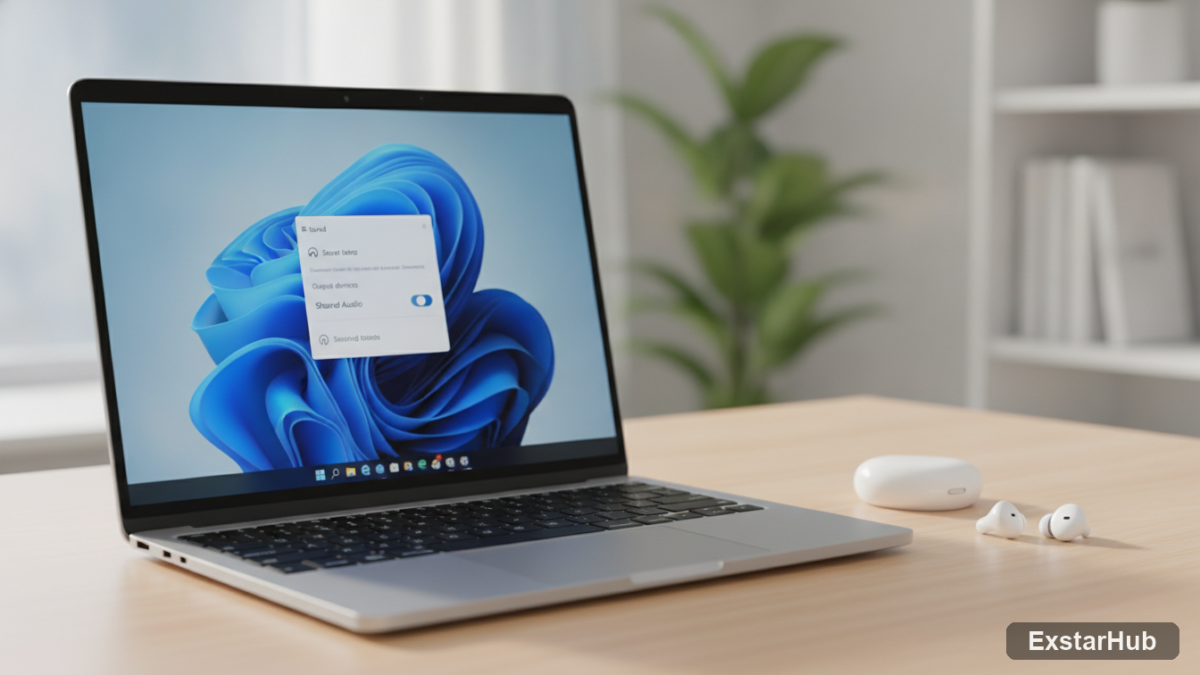
Sharing audio with others just became significantly easier in Windows 11. Microsoft has integrated a native shared audio broadcasting feature directly into the operating system, eliminating the need for complicated splitters or unreliable mirroring applications. This allows you to send synchronized sound streams to multiple Bluetooth devices simultaneously, creating a more convenient and streamlined listening experience.
Setting Up Shared Audio: Requirements and Compatibility
Before diving in, understanding compatibility is crucial. The shared audio feature leverages modern Bluetooth Low Energy (LE) Audio protocols and necessitates Windows 11 build 26100.8522 or a later revision. This isn’t just about software; specific hardware components are also required for the functionality to work correctly. Currently compatible systems include laptops equipped with Qualcomm Snapdragon X Elite or Snapdragon X Plus processors – models like the Microsoft Surface Laptop 7, Surface Pro 11, Samsung Galaxy Book4 Edge, and Dell XPS 13 9345 fall into this category. Additionally, newer devices featuring Intel Core Ultra Series 200 silicon are also supported. Finally, you’ll need compatible audio endpoints such as the Samsung Galaxy Buds2 Pro, Galaxy Buds3, Galaxy Buds3 Pro, Sony LinkBuds S, and modern LE Audio-equipped hearing aids from manufacturers like ReSound and Beltone to receive the shared audio stream.
Connecting Devices and Managing Volume
Setting up the sharing process itself is quite straightforward. Begin by pairing the Bluetooth headsets or speakers you intend to share with your Windows 11 PC, just as you would for any other Bluetooth device. Once paired and connected, a new status icon will appear on the taskbar when shared audio is active, providing quick access to configuration settings. The true convenience of this feature lies in individual volume control; each connected device can have its volume adjusted independently using intuitive software sliders within the menu or via physical buttons located directly on the headset itself. This ensures everyone enjoys their listening experience at a comfortable level.
Understanding Controlled Feature Rollout
A potential stumbling block for some users is that even if your system fully meets the hardware and software requirements, you might not immediately see the Shared Audio option in your settings. Microsoft utilizes a
Why it Matters
The inclusion of native shared audio in Windows 11 represents a significant advancement over previous solutions, which often involved cumbersome workarounds. Sharing music or podcasts with others previously required complex configurations and frequently resulted in unreliable performance. By integrating this functionality directly into the operating system, Microsoft simplifies the process considerably, making it accessible to a wider range of users. Beyond mere convenience, this also opens doors for new collaborative listening experiences—imagine effortlessly sharing audio content during gatherings without fumbling with cables or struggling with complicated software setups.
Key takeaways
- Windows 11 now supports native shared audio broadcasting.
- Requires Windows 11 build 26100.8522 or newer and compatible hardware (Qualcomm Snapdragon X Elite/X Plus, Intel Core Ultra).
- Compatible Bluetooth devices include Samsung Galaxy Buds, Sony LinkBuds S, and LE Audio-enabled hearing aids.
- The feature is being rolled out gradually via a Controlled Feature Rollout (CFR), so it may not be immediately available to all users.
FAQ
This is likely due to Microsoft’s Controlled Feature Rollout (CFR). The feature hasn’t been enabled for your device yet; check back later. Ensure you have the latest Windows 11 updates installed.
Yes, when sharing audio, Windows temporarily disables Bluetooth headset microphones and defaults to the laptop’s built-in microphone array for voice calls.
The new Shared Audio feature in Windows 11 promises a streamlined and convenient way to share your favorite music and podcasts with those around you. While specific hardware requirements exist, the added ease of use should make it a welcome addition for compatible users.
Source: Notebookcheck