Rebuild Your Windows Workflow with Virtual Desktops
Feeling overwhelmed by your Windows desktop? Switching to virtual desktops, inspired by macOS's Mission Control, can dramatically improve multitasking and organization. Learn how I reorganized my workflow for increased productivity.
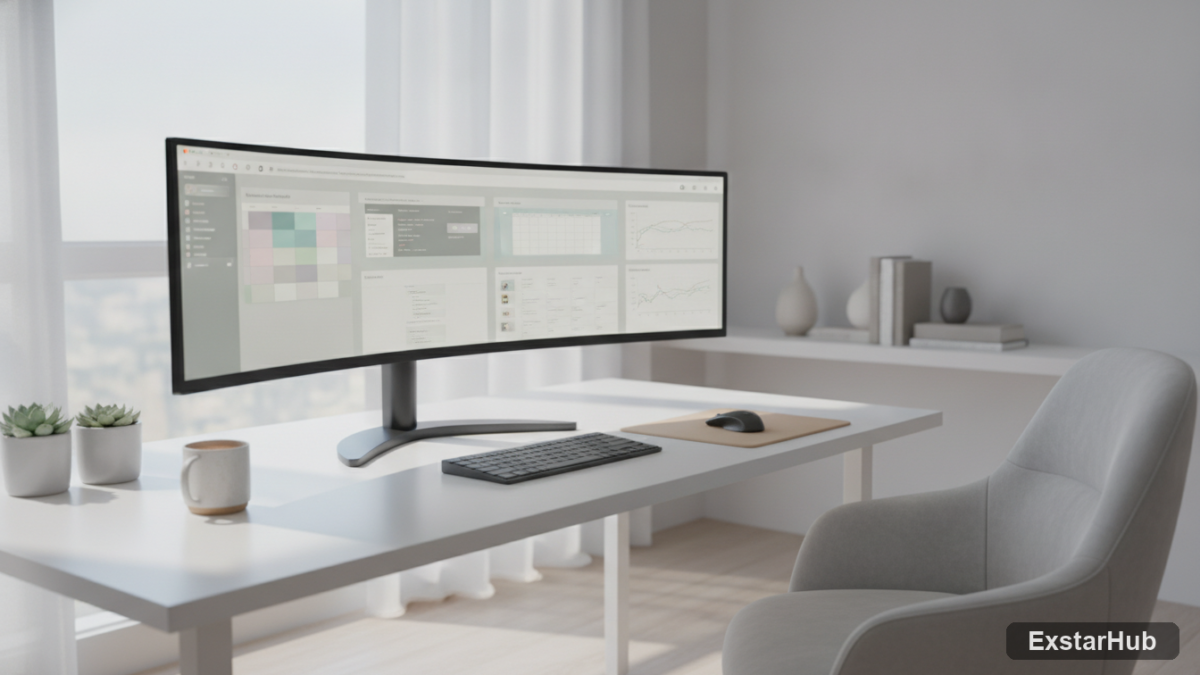
If you’ve ever felt like your Windows desktop has become a chaotic dumping ground of open windows and overflowing icons, you’re not alone. For years, I relied on Alt+Tab to navigate the mess, but recently, inspired by macOS’s Mission Control, I rebuilt my workflow around virtual desktops—and it fundamentally changed how I work.
Why Virtual Desktops? A Shift in Perspective
For a long time, Alt+Tab was my primary method for switching between applications on Windows. While Task View exists as a helpful feature within the operating system, it often left me feeling like I was simply shuffling windows around without addressing the underlying organizational issues. Experiencing the elegance and efficiency of virtual desktops on macOS highlighted their potential: the ability to quickly switch not only between open windows but also entirely separate workspaces with just a click. This fundamentally changes how you approach multitasking.
Building a Personalized Workspace
The first step in my transformation was creating dedicated workspaces for different aspects of my work and personal life, effectively separating them from the primary desktop I use for gaming. Initially, I started with just two virtual desktops – one solely for writing and another for general tasks or entertainment. This simple separation immediately reduced visual clutter by allowing me to keep browser windows and research materials open without feeling overwhelmed by other applications. The benefit isn’t just aesthetic; it shifts your mindset towards a more focused state.
Expanding Your Desktop Ecosystem
As my needs evolved, I realized the true power of specialization within virtual desktops. Now, my typical workday involves several dedicated spaces, each tailored to specific tasks. One desktop is reserved exclusively for writing, keeping multiple browser windows and research tabs open side-by-side. Another space handles photo editing, incorporating both Adobe Photoshop and Lightroom – preventing constant window switching and maximizing efficiency. A third desktop is designated for capturing screenshots related to my work, while others manage file transfers from external devices or handheld PCs when I’m reviewing games for TechPowerUp. Each virtual desktop holds only essential apps and windows, creating a vastly more navigable workspace than a single, sprawling desktop.
Beyond the Basics: Customization & Wishlist
While Windows’s built-in virtual desktop functionality offers substantial benefits, there’s always room for improvement. Ideally, per-desktop customization would allow users to tailor icon sets and shortcuts—for example, removing game icons from my work desktops while maintaining them on a dedicated gaming space. Furthermore, the ability to mute individual desktops would significantly enhance focus by preventing notifications from interrupting workflow across different environments. Imagine being able to silence email alerts on your work desktop while remaining connected on your personal one; it’s a feature that would dramatically improve concentration.
Why It Matters
The shift to virtual desktops isn’t just about aesthetics or tidiness; it represents a fundamental change in how you approach and manage work. By creating dedicated spaces for specific tasks, the mental overhead of switching between projects diminishes significantly. This is particularly relevant in today’s world where many of us juggle multiple responsibilities – writing articles, editing photos, managing files, and communicating with colleagues—all on a single device. The ability to instantly switch between these focused environments can unlock surprising levels of productivity and reduce the feeling of being constantly overwhelmed.
Key takeaways
- Start Simple: Begin with just two virtual desktops – one for work and one for personal use, gradually expanding as needed.
- Specialize Your Spaces: Create dedicated desktops for specific tasks like writing, photo editing, or screenshot capture to minimize distractions.
- Leverage Shortcuts: Map Task View to a mouse button (using utilities) for quick navigation between windows and desktops; avoid relying solely on Alt+Tab.
- Reduce Clutter: Keep only essential apps open on each desktop to minimize visual noise and enhance focus.
- Embrace Customization: Explore third-party tools to further personalize your virtual desktop experience, such as remapping shortcuts or managing window layouts.
FAQ
How do I enable virtual desktops in Windows?
Virtual Desktops are enabled by default in recent versions of Windows (10 and 11). You can access them via Task View (Windows key + Tab) or through the Action Center.
Can I customize shortcuts for virtual desktops?
Yes, you can remap keyboard shortcuts and assign actions to mouse buttons using third-party utilities. This allows for more efficient navigation between your workspaces.
Reorganizing your Windows workflow around virtual desktops is a surprisingly impactful change—a simple adjustment that yields significant productivity gains by bringing order to desktop chaos, and it’s something I wouldn’t want to go back to now.
Source: How-To Geek